Wednesday, 16 September 2015

SoapUI: change the location of your user home

At my current customer I use a company supplied laptop. In the office, when I logon I get connected to a Home Folder on a network drive. SoapUI stores it's default workspace in the root of that folder, based on Windows settings.

At home I connect using VPN and somehow this Home Folder is unreachable. Very inconvenient, because with every restart I need to open/import my projects again.

As with the increase of the heap settings like I showed a few days ago, also for the location of the user-home, there is a property, that can be set as a Java -D argument.

So you can add that to the "SoapUI-5.1.3.vmoptions", just add the Duser.home property as follows:
-Xms1024m
-Xmx1536m
-Duser.home=c:\dev\SoapUI
-Dsoapui.properties=soapui.properties
-Dsoapui.home=C:\Program Files\SmartBear\SoapUI-5.1.3/bin
-Dsoapui.ext.libraries=C:\Program Files\SmartBear\SoapUI-5.1.3/bin/ext
-Dsoapui.ext.listeners=C:\Program Files\SmartBear\SoapUI-5.1.3/bin/listeners
-Dsoapui.ext.actions=C:\Program Files\SmartBear\SoapUI-5.1.3/bin/actions
-Dwsi.dir=C:\Program Files\SmartBear\SoapUI-5.1.3/wsi-test-tools
-Djava.library.path=C:\Program Files\SmartBear\SoapUI-5.1.3/bin
-Djava.util.Arrays.useLegacyMergeSort=true
-splash:soapui-splash.png
As easy as that.

The folder needs to exist of course. You can also add it to the JAVA_OPTS variable in soapui.bat/.sh:
rem JVM parameters, modify as appropriate
set JAVA_OPTS=-Xms128m -Xmx1024m -Dsoapui.properties=soapui.properties "-Dsoapui.home=%SOAPUI_HOME%\" -splash:soapui-splash.png -Duser.home=c:\dev\SoapUI

On a restart and a subsequent close of SoapUI you'll notice that it writes the workspace in the denoted folder.

By the way, I found this tip here.

Monday, 14 September 2015

SoapUI: increase memory settings

I have some testcases to run a complex of OSB services that processes documents in a content server.
Using a customization file I changed the endpoints of the content server's webservices to mock-services in SoapUI.

In these testcases I kick-off the OSB services, and in successive MockResponse-teststeps I try to catch the service-requests of OSB. This enables me to set assertions on the messages that OSB sends out to the content server, and thus validate the messages built in the OSB-proxies.

I found that one testcase can run correctly for one time, but running it the second time, or running a second testcase succesively, may fail.


Now it is quite important to have the successive MockResponse-teststeps started at the start of the previous teststep.


At the failing test step, OSB apparently sends a request that isn't caught by SoapUI or SoapUI responds with a HTTP-500 (Internal Server error).


Using JVisualVM, monitored the Heap of the JVM of SoapUI, and I found that just about the time the start/run of the failing teststep, there is an increase in heap. Now, since I found that having the set the Start Step property of each MockResponse-step is important, I figured it seems that timing is everything: also an increase of the Heap consumes time, and is presumably triggered by a major Garbage Collect, that halts the application for a brief moment.


So I wanted to increase the amount of heap. Since SoapUI is started with an .exe file (under Windows that is), the JVM properties (SoapUI is a Java application) are stored in a file. Under windows it can be found in "c:\Program Files\SmartBear\SoapUI-5.1.3\bin", depending on the version of SoapUI.
The file is called "SoapUI-5.1.3.vmoptions" and has the following contents:

-Xms1024m
-Xmx1536m
-Dsoapui.properties=soapui.properties
-Dsoapui.home=C:\Program Files\SmartBear\SoapUI-5.1.3/bin
-Dsoapui.ext.libraries=C:\Program Files\SmartBear\SoapUI-5.1.3/bin/ext
-Dsoapui.ext.listeners=C:\Program Files\SmartBear\SoapUI-5.1.3/bin/listeners
-Dsoapui.ext.actions=C:\Program Files\SmartBear\SoapUI-5.1.3/bin/actions
-Dwsi.dir=C:\Program Files\SmartBear\SoapUI-5.1.3/wsi-test-tools
-Djava.library.path=C:\Program Files\SmartBear\SoapUI-5.1.3/bin
-Djava.util.Arrays.useLegacyMergeSort=true
-splash:soapui-splash.png


You'll need to change the security properties to enable yourself to edit/save it. Then change the -Xms and -Xmx properties according to your needs. The defaults are quite "cautious": -Xms200m and -Xms1000m.

Using JVisualVM you can see that with a restart the new memory settings are picked up and in my case that no increase in Heap is needed during the tests.

Wednesday, 2 September 2015

Set environment properties in SoapUI (freeware) - Revised

Last july I wrote about setting environment depended properties in SoapUI. I'm looking for the best way to make SoapUI testcases environment independend and to make it easy to switch between target environments.

In that article I suggested to create a set of properties with the actual working values on project level to be refered in the endpoint urls (hostname:port + URI), username/passwords and so on. And per environment a distinct set of the same properties holding the values of that target environment. Then I created a test case per target environment that copies those target-environment values to the working properties.

This works fine for me. However, in my quest to the most comfortable way of registering and toggling between those values, I found a few enhancements quite convenient.

First of all, after the property-transfer step, I created a manual step, listing the values of the working properties, with a remark that it should contain the values of the particular target environment:


My Localhost version of this testcase will run into:
Don't forget to click 'Ok' after this step. Unfortunately I did not find a way to increase the 'Expected Result" Textarea.

The second enhancement was that I moved my Target Environment property values to the "setEnvironment" test case. I found that with an increasing number of properties it is quite hard to have a clear overview of the properties. And I need to think about a proper naming convention. But when I moved those to the "setEnvironment" test case I have a distinctive set of properties per environment and on project level a distinctive set of working properties.
Since the testcase is environment-specific, I don't need a target-environment reference in the property-names. And also, they are scoped and thus not referable within other testsuites/testcases, preventing errors.

Moving those properties in SoapUI is pretty labor-intensive. But moving those in the source is quick (and dirty). If you open the SoapUI project xml file, you'll find the project-properties at the bottom of the file:
For instance:
<con:properties>
<con:property><con:name>CSServiceURI</con:name><con:value>ContentServer/PS_StoreDocumentToCSStage_v1</con:value>
</con:property><con:property><con:name>CSServiceHost</con:name><con:value>localhost:7001</con:value></con:property>
<con:property><con:name>CSUser</con:name><con:value>svc_GSA</con:value></con:property>
<con:property><con:name>CSPassword</con:name><con:value>welcome1</con:value></con:property>
<con:property><con:name>CSHost</con:name><con:value>localhost:8088</con:value></con:property>
<con:property><con:name>CSAuthenticationURI</con:name><con:value>ContentServer/Authentication</con:value></con:property>
<con:property><con:name>CSSearchServiceURI</con:name><con:value>ContentServer/SearchService</con:value></con:property>
<con:property><con:name>CSDocumentManagementURI</con:name><con:value>ContentServer/DocumentManagement</con:value></con:property>
<con:property><con:name>CSAuthenticationToken</con:name><con:value>TsiKqmREU78MhR4Po%2FJFlsv3OzGUAnDsDsPDcymSnxI%3D</con:value></con:property>
</con:properties>

Copy and paste the properties to move (since I did so allready you'll don't find my target-env properties here anymore) to a seperate  file to get them together.
Then find the target-testcase in the file (in this example "SetLocalEnvironment"):

You'll find at the end of the testcase an empty properties element (<con:properties/>). Open it up (<con:properties> </con:properties> ) and copy and paste the properties within the element.
SoapUI doesn't do formatting of the xml, so you might want to add line-feeds like I did in this example.
Finally you need to change the property-transfer-lines. In the example above, you'll see that I found the transfer-step and added line-feeds for each "<con:transfers ..."
<con:transfers setNullOnMissingSource="true"... some other properties... ><con:name>CSServiceHost</con:name><con:sourceType>CSServiceHost-Dev</con:sourceType><con:sourceStep>#Project#</con:sourceStep><con:targetType>CSServiceHost</con:targetType><con:targetStep>#Project#</con:targetStep><con:upgraded>true</con:upgraded></con:transfers>

You'll find in this line the source step: "<con:sourceStep>#Project#</con:sourceStep>" and target step: "<con:targetStep>#Project#</con:targetStep>". Change the value of the source step to: "<con:sourceStep>#TestCase#</con:sourceStep>". Now the property is refered from the testcase instead of the project. The property on project level can be deleted.

Renaming the properties can better be done from the UI, since SoapUI will then change the property-name also in every reference. Even in soap-requests. So after changing the file in your ascii-editor reload the project in SoapUI. And make the final changes and do the tests.

Now, although this is a nice example of source-hacking from outside the UI, you can't expect any support on this of course. So enable a proper version-control and test the SoapUI properly.

Thursday, 20 August 2015

Authorized REST request to MCS with SoapUI

In my former post I explained how to do a REST request to a Mobile Cloud Service API using an Unauthorized access. To do so you need to add an HTTP Header property using a Base64 encoded key. But how to do that for authorized access. Using Postman you should be able to add HTTP  Basic authentication, provide the access details and update the request. In SoapUI, it's more or less the same trick: just provide the HTTP Basic Authentication details, and SoapUI does the encoding for you:
Now if you run this and open up the SoapUI Log: you'll see log entries with the message that is send over the line to MCS.
Thu Aug 20 15:19:59 CEST 2015:DEBUG:>> "GET /mobile/custom/incidentreport_M10/incidents/?contact=Lynn HTTP/1.1[\r][\n]"
Thu Aug 20 15:19:59 CEST 2015:DEBUG:>> "Accept-Encoding: gzip,deflate[\r][\n]"
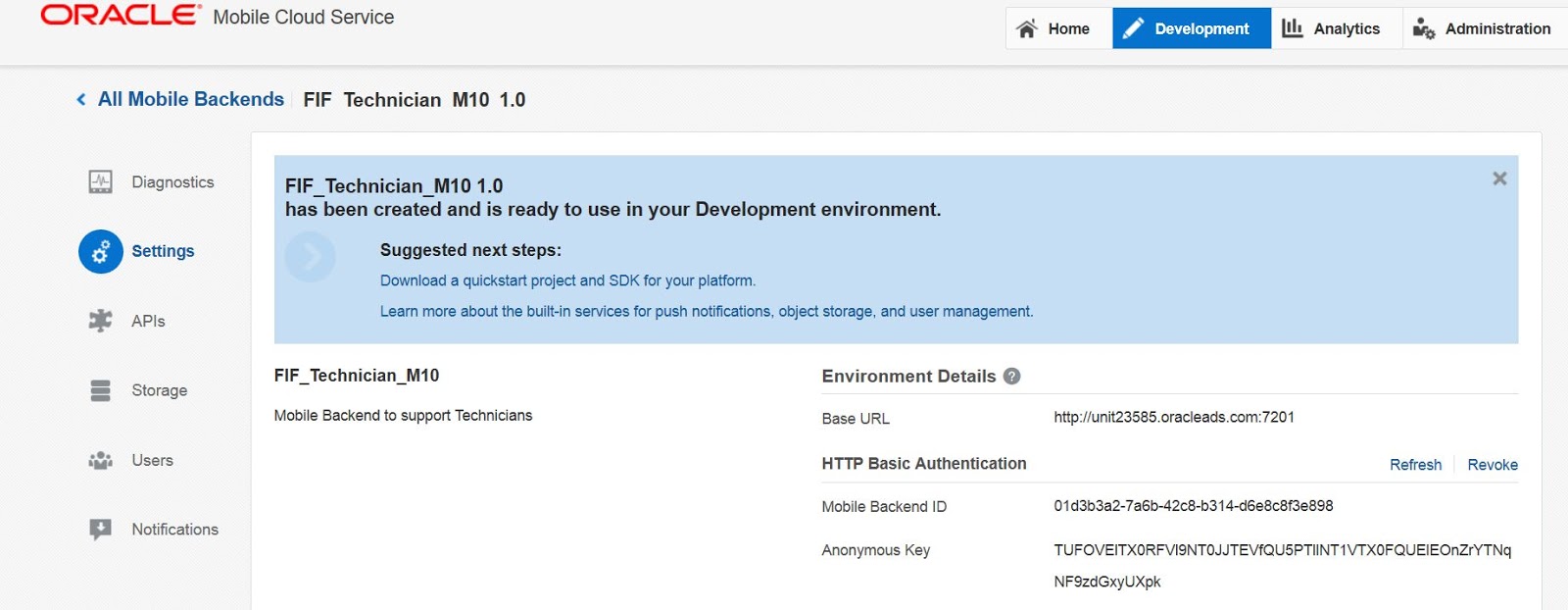
Thu Aug 20 15:19:59 CEST 2015:DEBUG:>> "oracle-mobile-backend-id: 01d3b3a2-7a6b-42c8-b314-d6e8c8f3e898[\r][\n]"
Thu Aug 20 15:19:59 CEST 2015:DEBUG:>> "Host: unit23585.oracleads.com:7201[\r][\n]"
Thu Aug 20 15:19:59 CEST 2015:DEBUG:>> "Connection: Keep-Alive[\r][\n]"
Thu Aug 20 15:19:59 CEST 2015:DEBUG:>> "User-Agent: Apache-HttpClient/4.1.1 (java 1.5)[\r][\n]"
Thu Aug 20 15:19:59 CEST 2015:DEBUG:>> "Authorization: Basic am9lX20xMDpuNlApIXBOdTQkMA==[\r][\n]"
Thu Aug 20 15:19:59 CEST 2015:DEBUG:>> "[\r][\n]"

Here You see in the last line that SoapUI encoded the username/password details into the Authorization header property. Below you'll see the response:
Thu Aug 20 15:20:00 CEST 2015:DEBUG:<< "HTTP/1.1 200 OK[\r][\n]"
Thu Aug 20 15:20:00 CEST 2015:DEBUG:<< "Connection: keep-alive[\r][\n]"
Thu Aug 20 15:20:00 CEST 2015:DEBUG:<< "Date: Thu, 20 Aug 2015 13:20:00 GMT[\r][\n]"
Thu Aug 20 15:20:00 CEST 2015:DEBUG:<< "Content-Length: 486[\r][\n]"
Thu Aug 20 15:20:00 CEST 2015:DEBUG:<< "Content-Type: text/html; charset=utf-8[\r][\n]"
Thu Aug 20 15:20:00 CEST 2015:DEBUG:<< "Set-Cookie: JSESSIONID=3W1cVVJQTgGmGZMXQy2G3pVG0QvWByQWtmJr212Mh5nQ9hB0yy4b!-920535662; path=/; HttpOnly[\r][\n]"
Thu Aug 20 15:20:00 CEST 2015:DEBUG:<< "oracle-mobile-runtime-version: 15.3.3-201507070814[\r][\n]"
Thu Aug 20 15:20:00 CEST 2015:DEBUG:<< "X-ORACLE-DMS-ECID: 5a67a51e479fa73b:43dd1c99:14f4a5d80d0:-8000-000000000000729a[\r][\n]"
Thu Aug 20 15:20:00 CEST 2015:DEBUG:<< "X-Powered-By: Servlet/2.5 JSP/2.1[\r][\n]"
Thu Aug 20 15:20:00 CEST 2015:DEBUG:<< "X-Powered-By: Express[\r][\n]"
Thu Aug 20 15:20:00 CEST 2015:DEBUG:<< "[\r][\n]"
Thu Aug 20 15:20:00 CEST 2015:DEBUG:<< "{[\n]"
Thu Aug 20 15:20:00 CEST 2015:DEBUG:<< "  "Body" : {[\n]"
Thu Aug 20 15:20:00 CEST 2015:DEBUG:<< "    "GetIncidentsByCustomerResponse" : {[\n]"
Thu Aug 20 15:20:00 CEST 2015:DEBUG:<< "      "Incident" : [ {[\n]"
Thu Aug 20 15:20:00 CEST 2015:DEBUG:<< "        "Date" : "2015-07-22 17:02:14 GMT",[\n]"
Thu Aug 20 15:20:00 CEST 2015:DEBUG:<< "        "Id" : 10,[\n]"
Thu Aug 20 15:20:00 CEST 2015:DEBUG:<< "        "ImageLink" : "storage/collections/2e029813-d1a9-4957-a69a-fbd0d7431d77/objects/6cdaa3a8-097e-49f7-9bd2-88966c45668f?user=lynn1014",[\n]"
Thu Aug 20 15:20:00 CEST 2015:DEBUG:<< "        "Priority" : "Medium",[\n]"
Thu Aug 20 15:20:00 CEST 2015:DEBUG:<< "        "Status" : "InProgress",[\n]"
Thu Aug 20 15:20:00 CEST 2015:DEBUG:<< "        "TechnicianAssigned" : "joe@fixit.com",[\n]"
Thu Aug 20 15:20:00 CEST 2015:DEBUG:<< "        "Title" : "Leaking Water Heater",[\n]"
Thu Aug 20 15:20:00 CEST 2015:DEBUG:<< "        "UserName" : "Lynn"[\n]"
Thu Aug 20 15:20:00 CEST 2015:DEBUG:<< "      } ][\n]"
Thu Aug 20 15:20:00 CEST 2015:DEBUG:<< "    }[\n]"
Thu Aug 20 15:20:00 CEST 2015:DEBUG:<< "  }[\n]"
Thu Aug 20 15:20:00 CEST 2015:DEBUG:<< "}"

Now, currently MCS supports basic authentication, but I've learned that in the next release OAuth will be supported.

Monday, 17 August 2015

Test MCS Custom API using SoapUI

I'm at the OPN Summercamps 2015 in Lisbon on the Mobile Cloud Services workshop, doning the FixIt Fast tutorial. Now, one of the steps is to test the API imported from a RAML document and confgured it. Then in step 3 you're going to test it using the build in test console of MCS. But since I have SoapUI installed I found it neat to be able to test it from there. Since then you can create Test Suites/Cases to do automatic tests.


What I did was to create a new SOAP UI Rest project based on the endpoint of the API:

Then I added a  paramter named contact with value 'lynn'.
But there are two HTTP-Header properties needed:
Propertyvalue
AuthorizationBasic TUFOVElT...(rest of very long string)
oracle-mobile-backend-id01d3b3a2-7a6b-42c8-b314-d6e8c8f3e898


Both values can be found on the settings tab of the Mobile Backend:
The 'oracle-mobile-backend-id' is found here literally. But the 'Authorization' is found under 'Anonymous Key', where initially it gives a link 'Show'. Clicking it will show a long string. Copy and paste it and prefix it with the word 'Basic' and a single space:

And then you're good to go....

Tuesday, 21 July 2015

Password properties in SoapUI

By accident I encountered the following behaviour of SoapUI. I wanted to register a username/password combination in SoapUI.
Normally in SoapUI property values are shown as plain text.  Here I miss-typed the property for password on purpose:
But see what happens if I correctly type the word "Password":
Apparently if the property contains the word  "Password", prefixed with something indicative, it will consider the property as a password field. Cool!

By the way: the phrase "Password" should be the last in the name. For example, if you post-fix the property with "-Dev", like "ContentServerPassword-Dev", the content becomes visible again. In those case, you should phrase it like "ContentServer-Dev-Password".

Wednesday, 15 July 2015

Disable Wrap Data Types

Just  a moment ago I stumbled on a blog entry of Eric Elsinga about the wrapping of datatypes in Weblogic Datasources, related to the DB-Adapter.

Weblogic wraps objects returned by the database-driver to provide functionality related to debugging, connection utilization tracking and transparent transaction support.
However for some native database objects like BLOBS, CLOBS, ARRAYS etc. this wrapping can affect the performance significantly. When this wrapping is disabled, the application (in our case the DB-Adapter) can work directly on the native objects provided by the Database driver.
To disable the object wrapping do the following:
  1. In the Domain Structure tree, expand Services, then select Data Sources.
  2. On the Summary of Data Sources page, click the data source name.
  3. Select the Configuration: Connection Pool tab.
  4. Scroll down and click Advanced to show the advanced connection pool options.
  5. In Wrap Data Types, deselect the checkbox to disable wrapping.
  6. Click Save.
Of course on a production-mode server you need to Lock&Edit upfront and Activate Changes afterwards.
See also: